
If you are new to thebigword, when you first login to Wordsynk Network, the Profile Setup page displays.
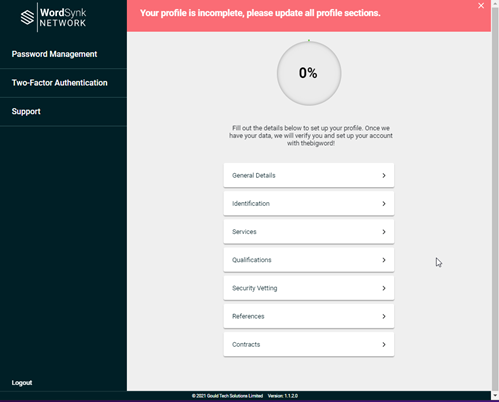
Click each section to display the fields to be completed. Once a section is completed a tick is displayed to confirm this, and you can move onto the next section.

As you progress through and complete the sections the percentage complete is updated.
General Details—enter your general details such as your name, age, contact details etc.
Identification—enter a form of identification. Select the relevant document and upload a copy, ensuring that you follow the instruction in the File Upload Guidance link.
Services—select the service you require, along with the language pairing and any relevant experience you have.
Qualifications—enter details of any qualifications you hold. Select the relevant qualification type and upload a copy, ensuring that you follow the instruction in the File Upload Guidance link.
Security Vetting—select the level of vetting you have from the drop-down list, enter the details and upload a copy, ensuring that you follow the instruction in the File Upload Guidance link.
References—enter the details of any reference contacts.
Contracts—displays your contract based on the details entered when creating your profile, click Finish to complete your profile setup. You can download a copy of the contact(s) to read in your own time.
Note: You will not be able to proceed with WordSynk until you have successfully completed your profile.
Comments
0 comments
Please sign in to leave a comment.