
How do I add Two-Factor Authentication?
1. Select My Profile > Two-Factor Authentication from the menu.
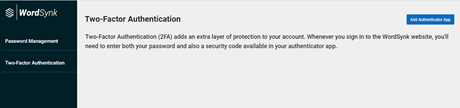
2. Click Add Authenticator App.
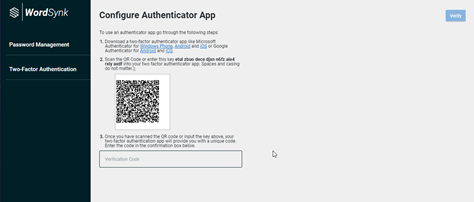
3. Download an app from the Google Play Store or App Store. We recommend:
- Microsoft Authenticator for Windows Phone, Android and iOS
- Google Authenticator for Android and iOS.
4. Once you have downloaded an app, you need to configure the app to work with WordSynk. Either:
- Scan the QR code.
- Enter the key displayed on the screen.
5. Enter the code unique code displayed on your authenticator app in the Verification Code field.
Note: The authenticator app generates a new code every 30 seconds. You need to enter the code within that timeframe.
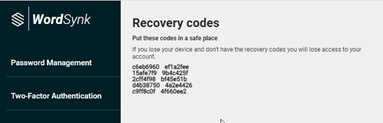
Two-factor Authentication will be validated and enabled. This will provide you with 10 recovery codes, which you should store safely. These codes can be used to access WordSYnk Network if your authenticator app is unavailable.
Comments
0 comments
Please sign in to leave a comment.